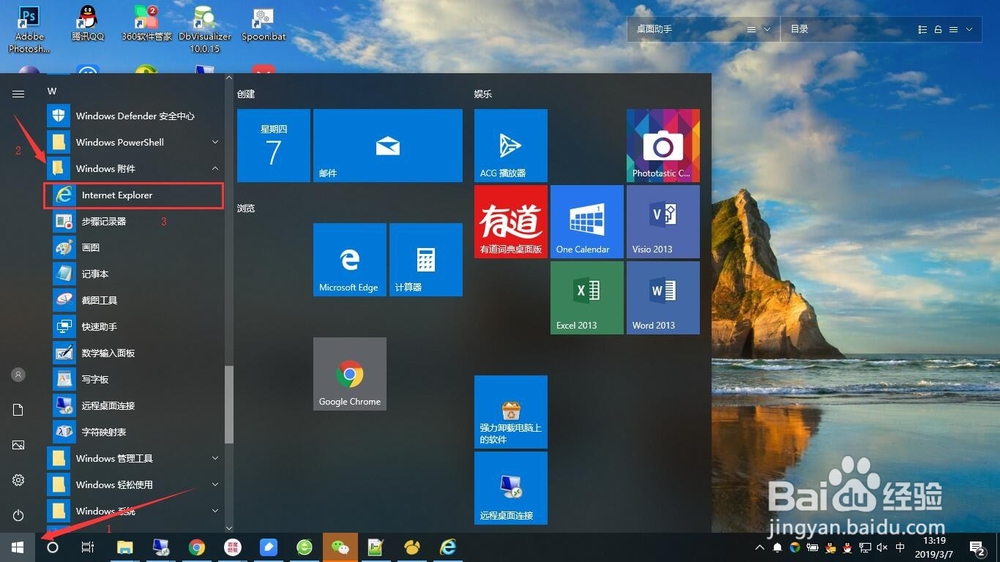
1、在计算机桌面上打开 Internet Explorer 浏览器。

2、如果还未将 Internet Explorer 浏览器快捷方式发送到桌面,您可以在任务栏点击“开始菜单”图标,找到“Windows 附件 ---> Internet Explorer”,点击 打开 Internet Explorer 浏览器。
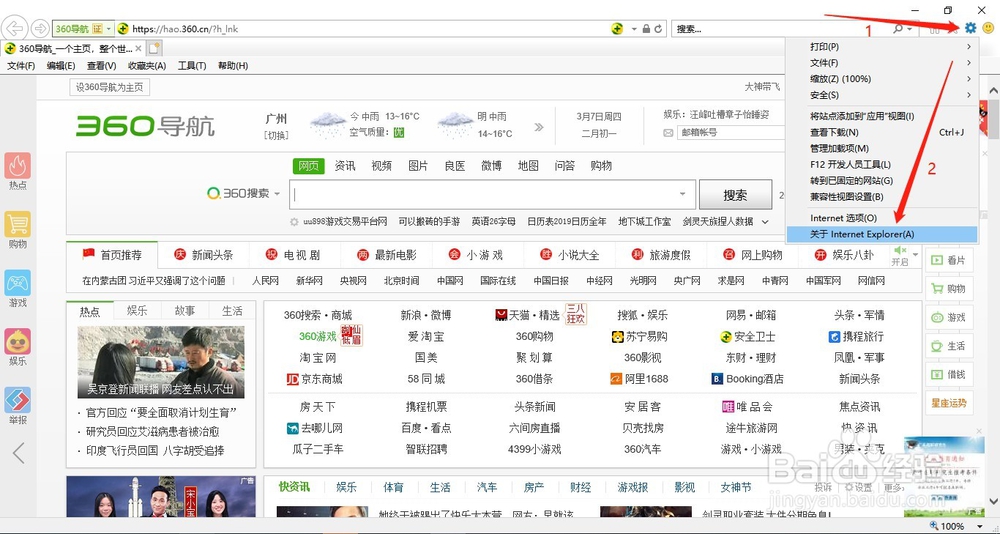
3、在Internet Explorer 浏览器首页,点击右上角的【工具(Alt + X)】图标,然后在下拉列表中选择点击“关于 Internet Explorer(A)”。
4、如图,弹出的“关于 Internet Explorer”窗口,我们可以查看浏览器的版本、更新版本和产品 ID,如图所示。

1、使用“Windows + R”组合快捷键,快速打开运行对话框,往“打开”输入框键入命令:regedit,然后点击【确定】。

2、打开注册表编辑器对话框,在地址栏键入“计算机\HKEY_LOCAL_MACHINE\SOFTWARE\Microsoft\Internet Explorer”然后回车,查看名称为“Version”对应于的数据即版本号。

1、使用“Windows + R”组合快捷键,快速打开运行对话框,往“打开”输入框键入命令:cmd,然后点击【确定】。

2、在打开的“命令提示符”对话框,粘贴命令“reg query "HKLM\SOFTWARE\Microsoft\Internet Explorer" /v Version”并回车即可查看Internet Explorer浏览器版本。
