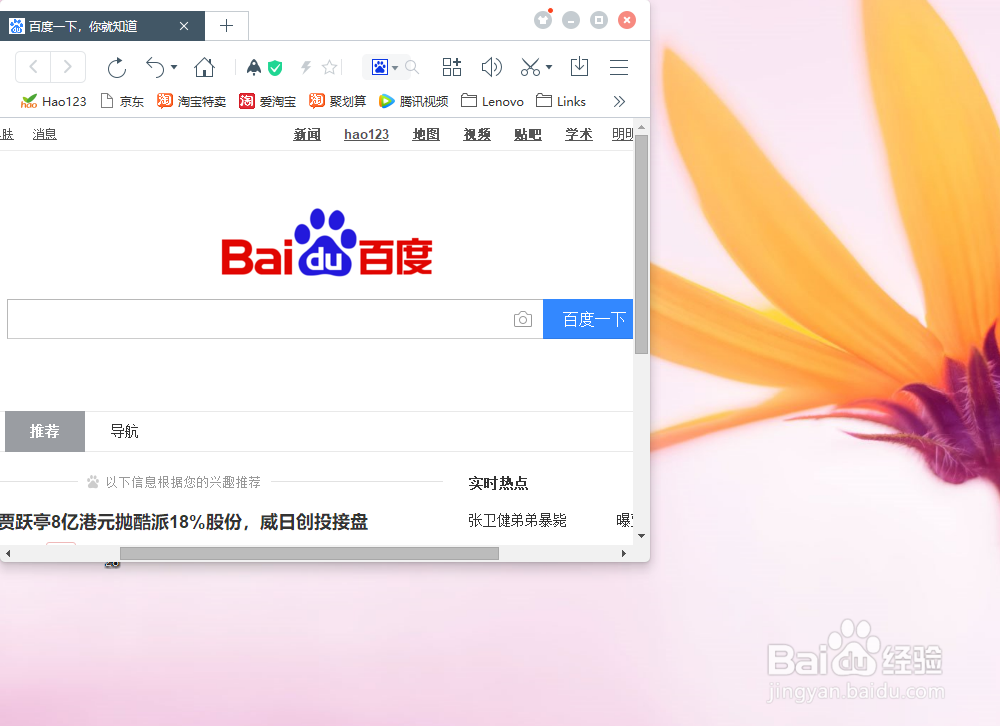
1、Internet Explorer 搜索下载百度浏览器,
首先,在"百度一下,你就知道 (窗格)"上左键单击(在"百度一下,你就知道 - Internet Explorer"中)。
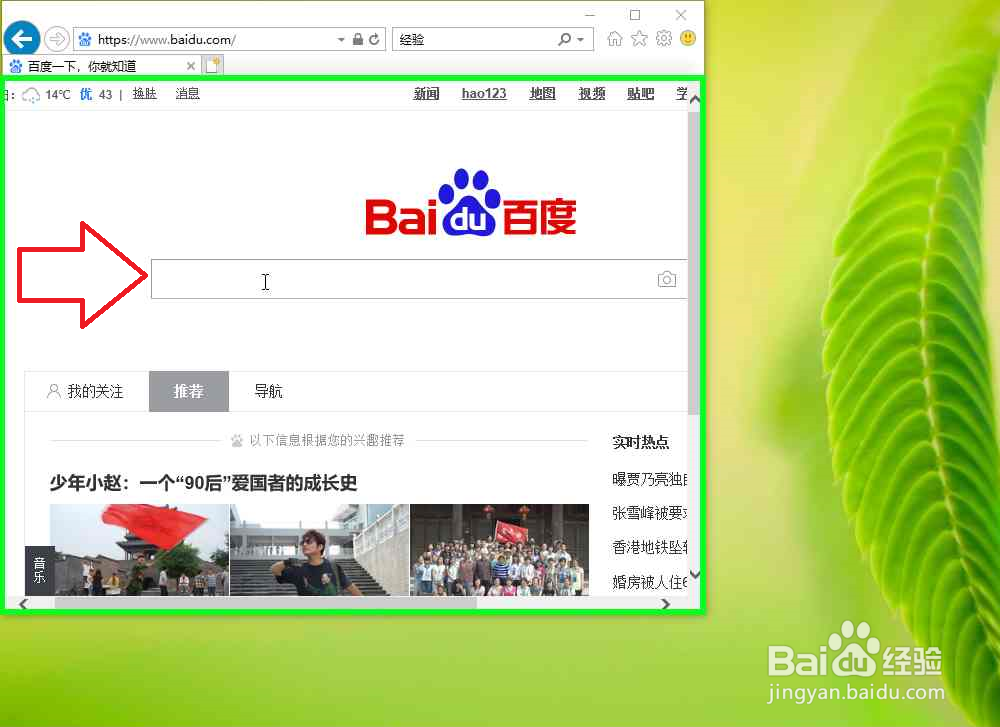
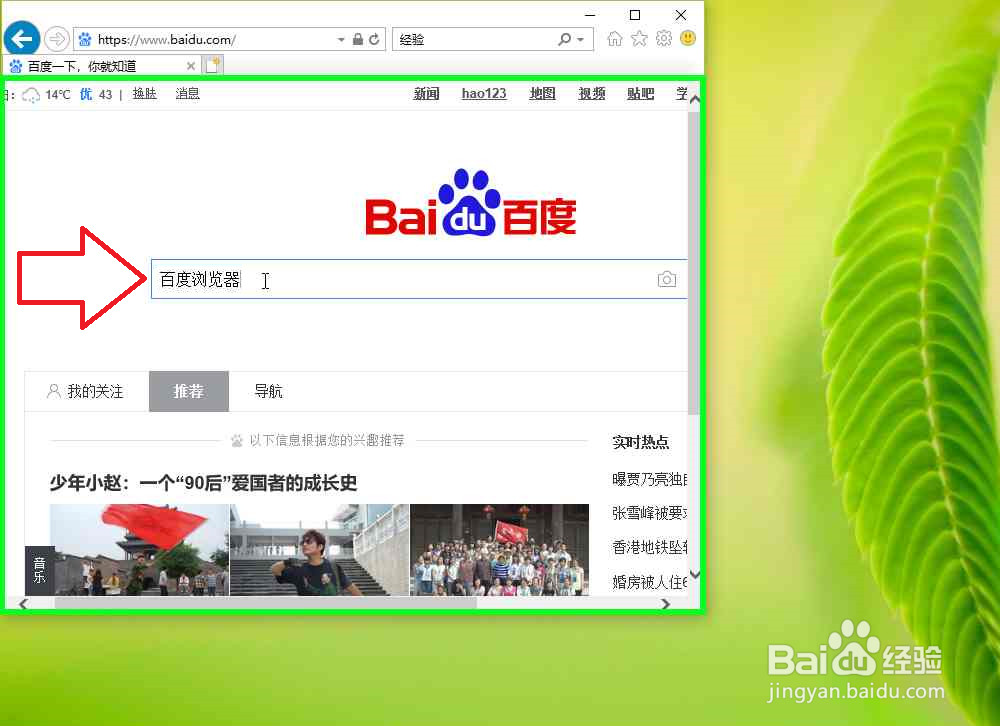
2、在"百度搜索框 (窗格)"上键盘输入:百度浏览器(在"百度一下,你就知道 - Internet Explorer"中) [...]。
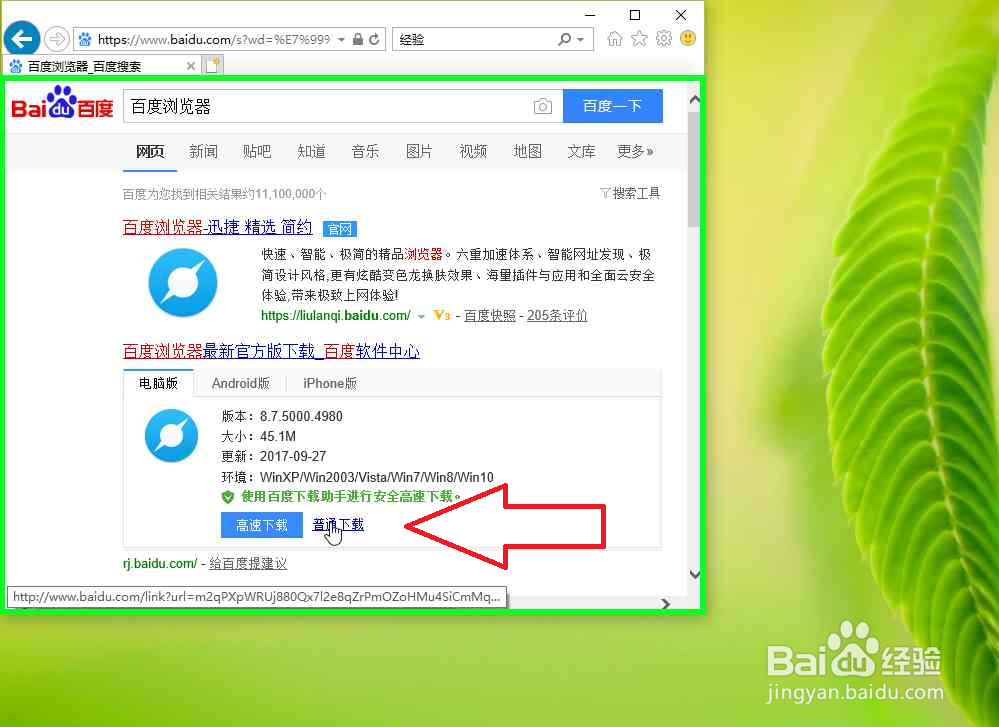
3、在"百度一下 (按钮)"上左键单击(在"百度浏览器_百度搜索 - Internet Explorer"中)。

4、在"普通下载 (文本)"上左键单击(在"百度浏览器_百度搜索 - Internet Explorer"中)。
5、在"运行 (按钮)"上左键单击(在" - Internet Explorer"中)。等待下载完成。

1、安装百度浏览器,下载完成后,
首先,在"VerticalLayoutUI (窗口)"上左键单击(在"安装百度浏览器"中)。可能需要许可管理员权限。
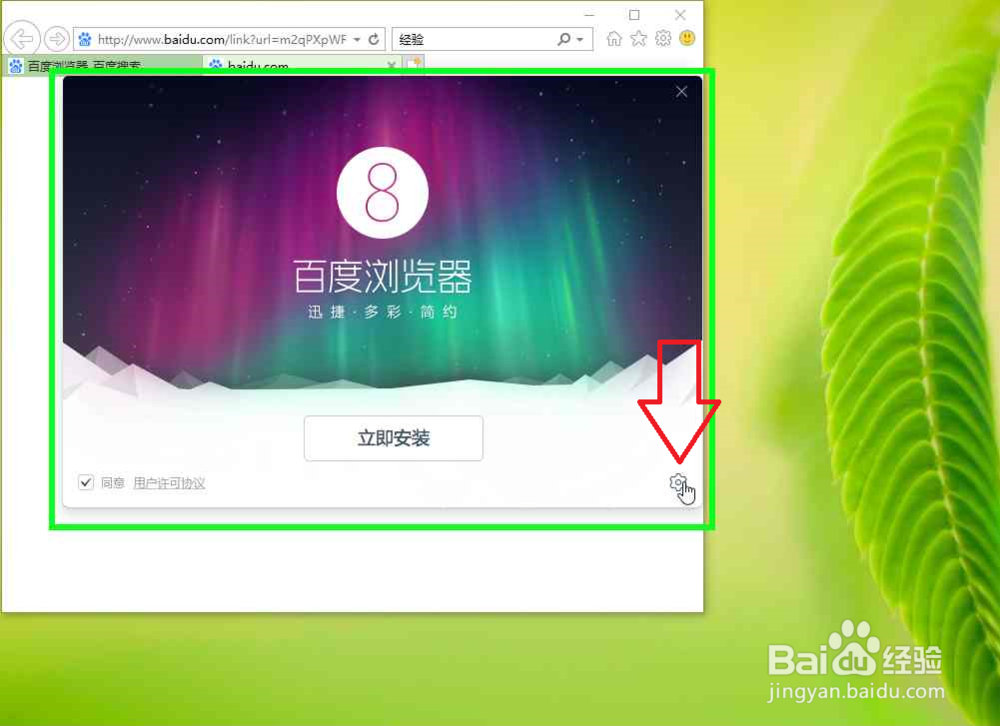
2、在"Install_btnLayout ()"上左键单击(在"安装百度浏览器"中)。
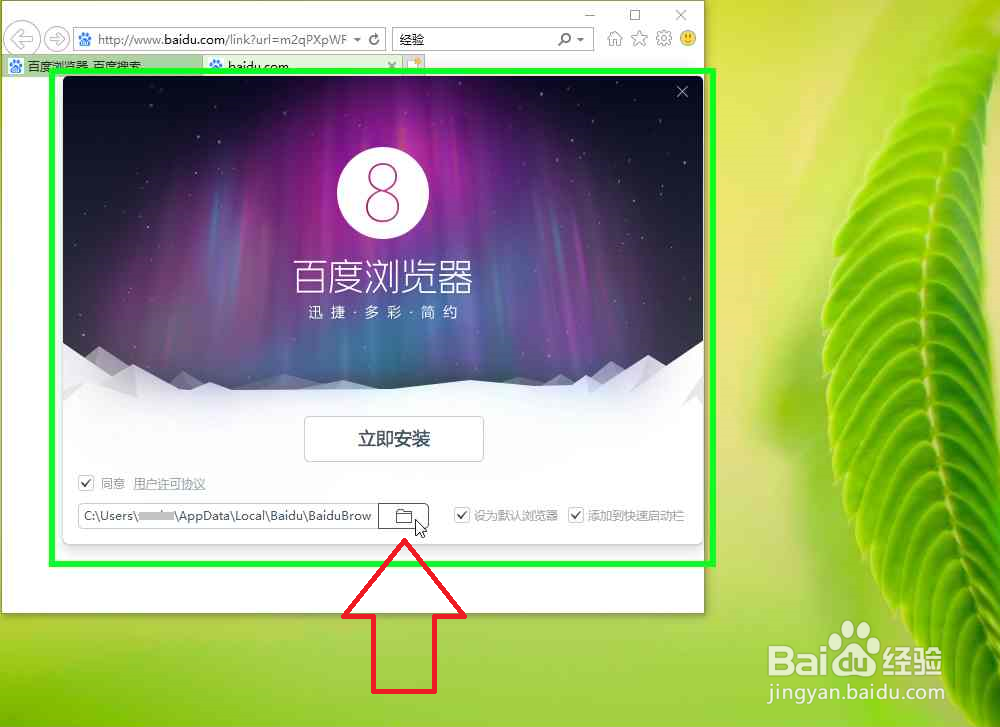
3、在"此电脑 (树项目)"上左键单击(在"选择安装目录"中)。
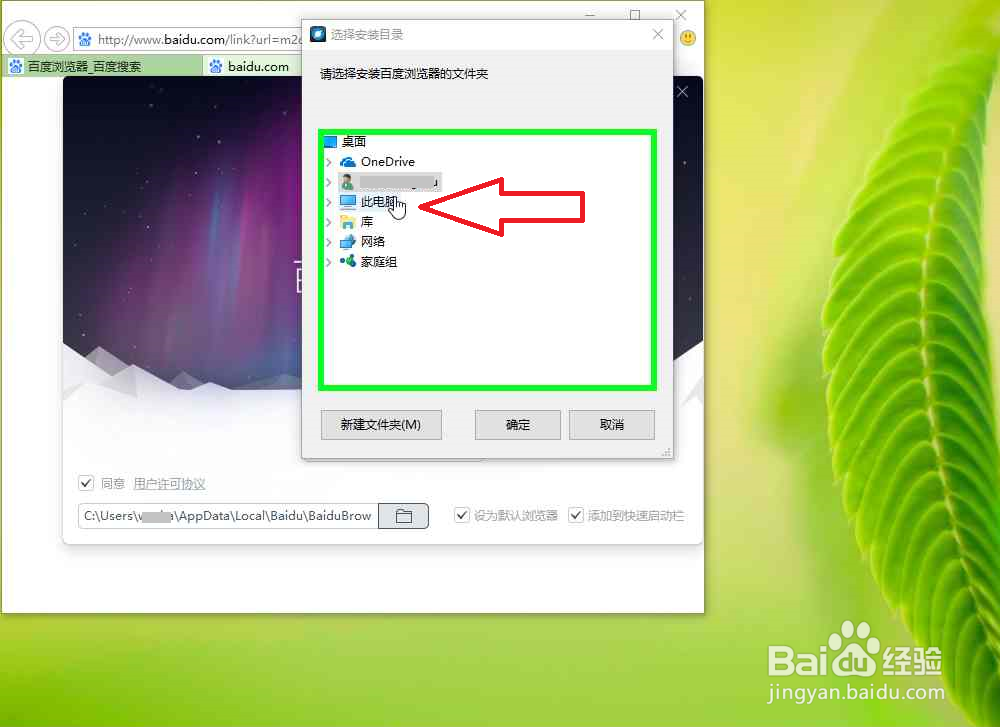
4、在"本地磁盘 (C:) (树项目)"上左键单击(在"选择安装目录"中)。
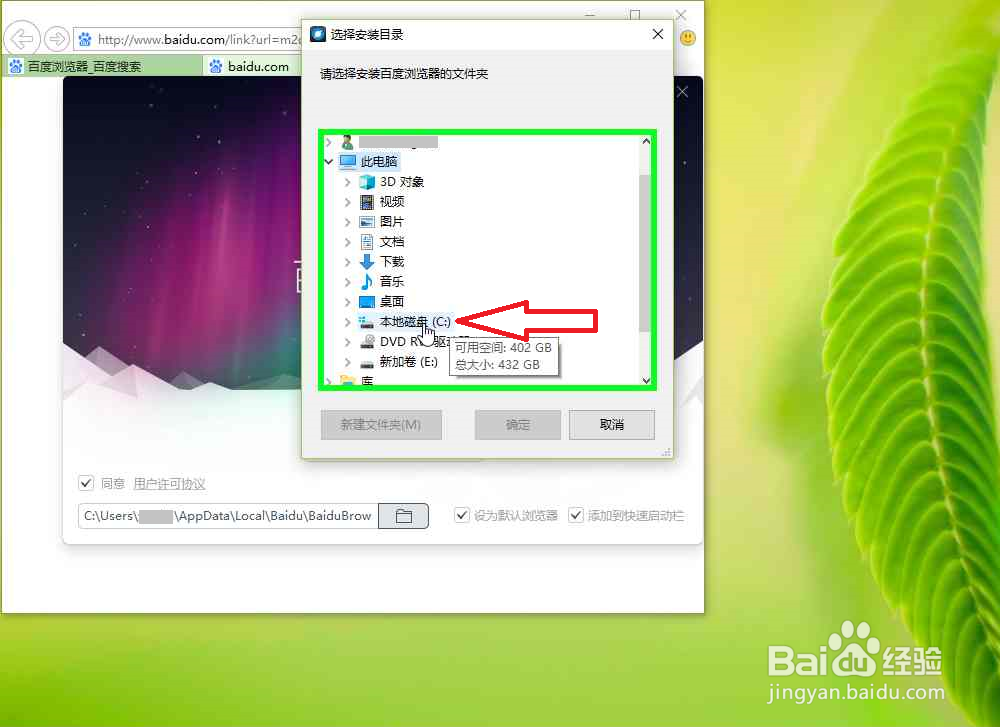
5、在"百度浏览器 (树项目)"上左键单击(在"选择安装目录"中)。安装在中文的文件夹中,方便以后查找。
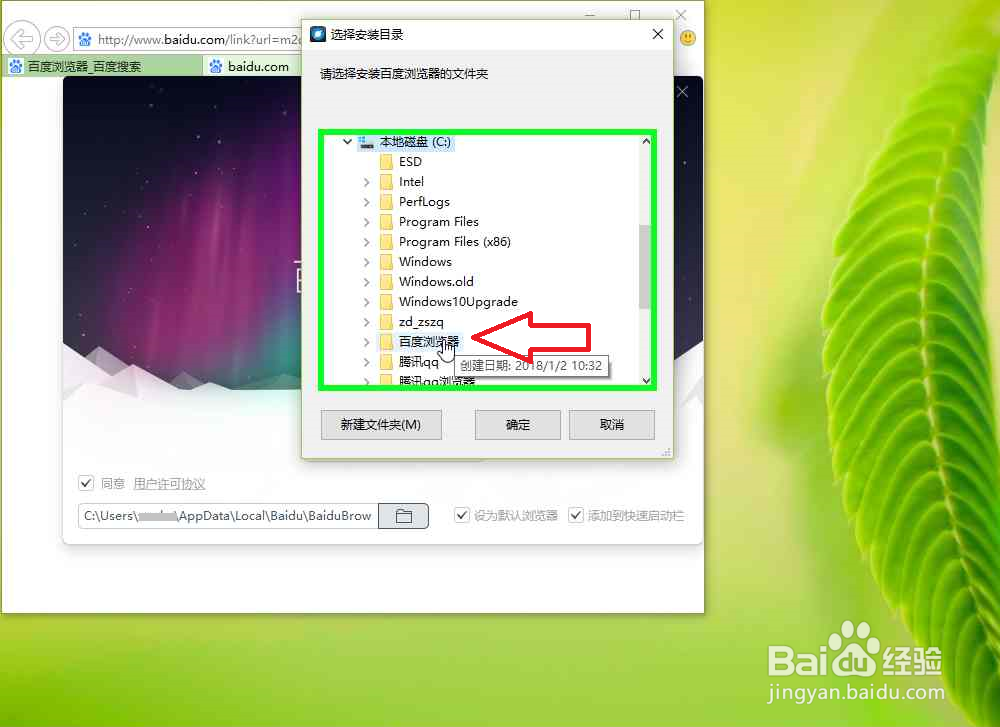
6、在"确定 (按钮)"上左键单击(在"选择安装目录"中)。
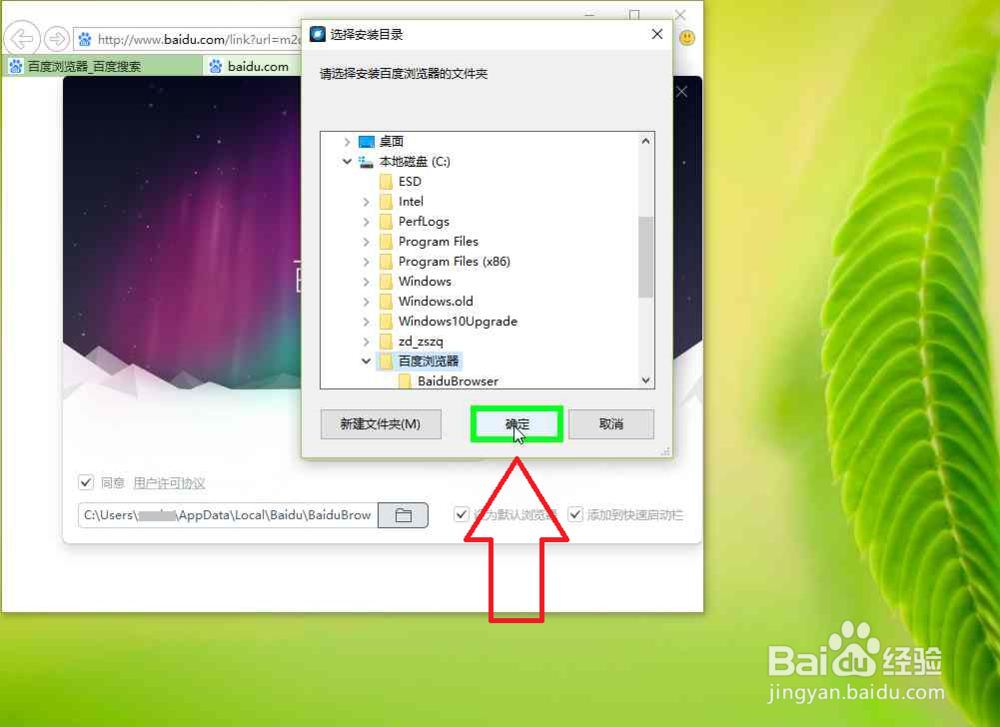
7、在"Install_btnLayout ()"上左键单击(在"安装百度浏览器"中)。
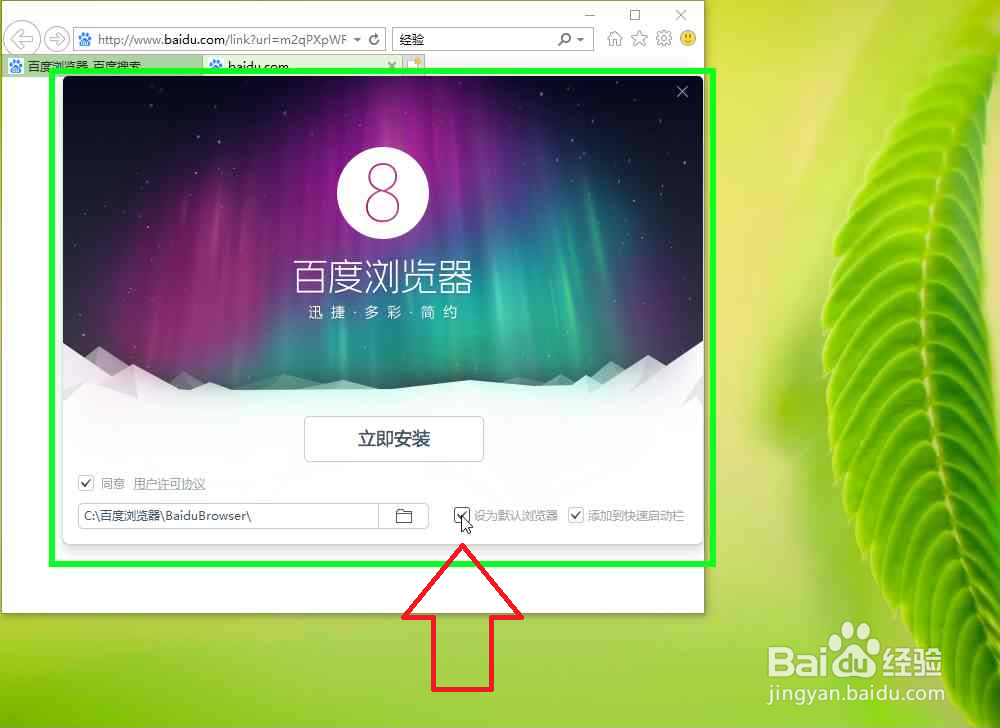
8、在"oneInstall_btn ()"上左键单击。
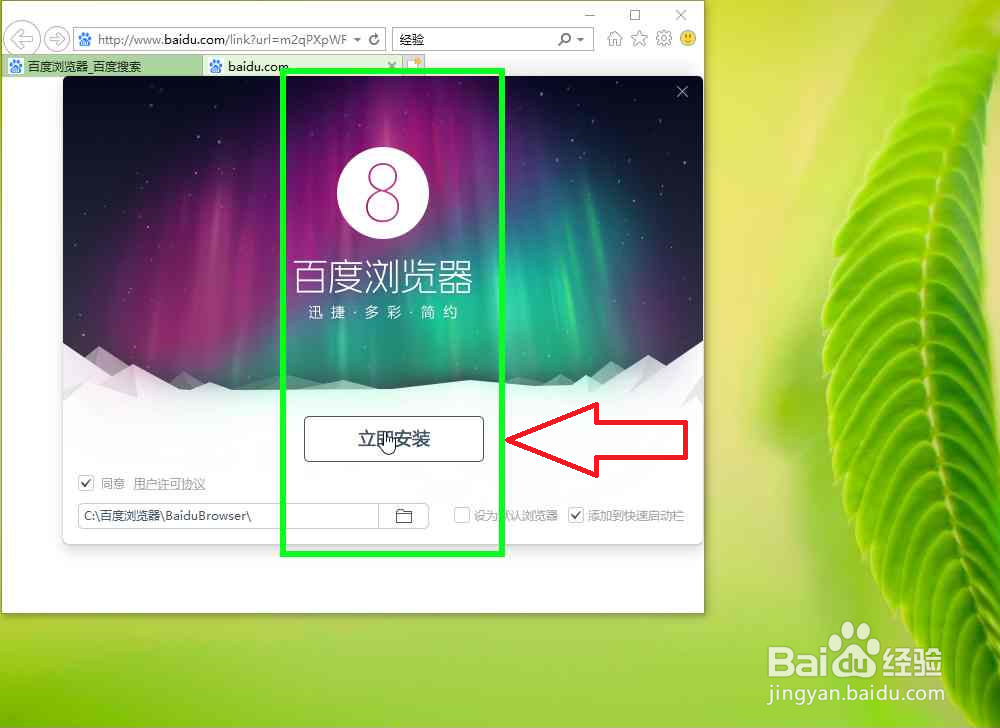
9、百度浏览器安装完成。