如何安装Windows 8.1 x64位操作系统

时间:2026-02-16 02:54:37

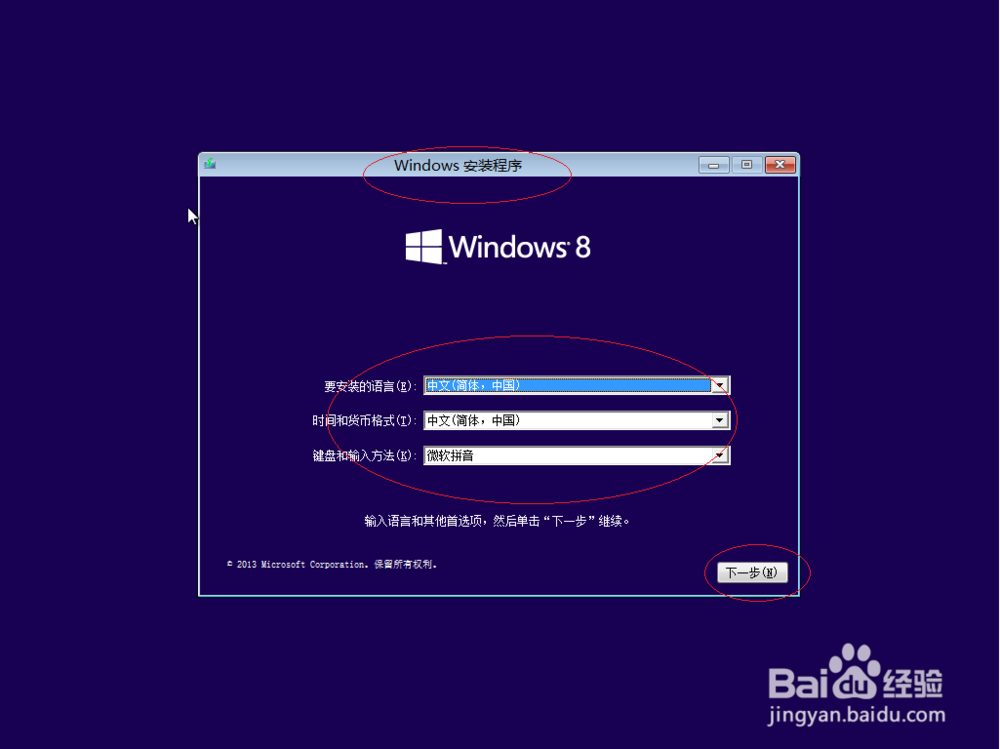
1、鼠标双击Windows 8.1 x64操作系统安装文件,如图所示。输入语言和其他首选项,勾选"我接受许可条款"复选框。
如何安装Windows 8.1 x64位操作系统

如何安装Windows 8.1 x64位操作系统

如何安装Windows 8.1 x64位操作系统

如何安装Windows 8.1 x64位操作系统

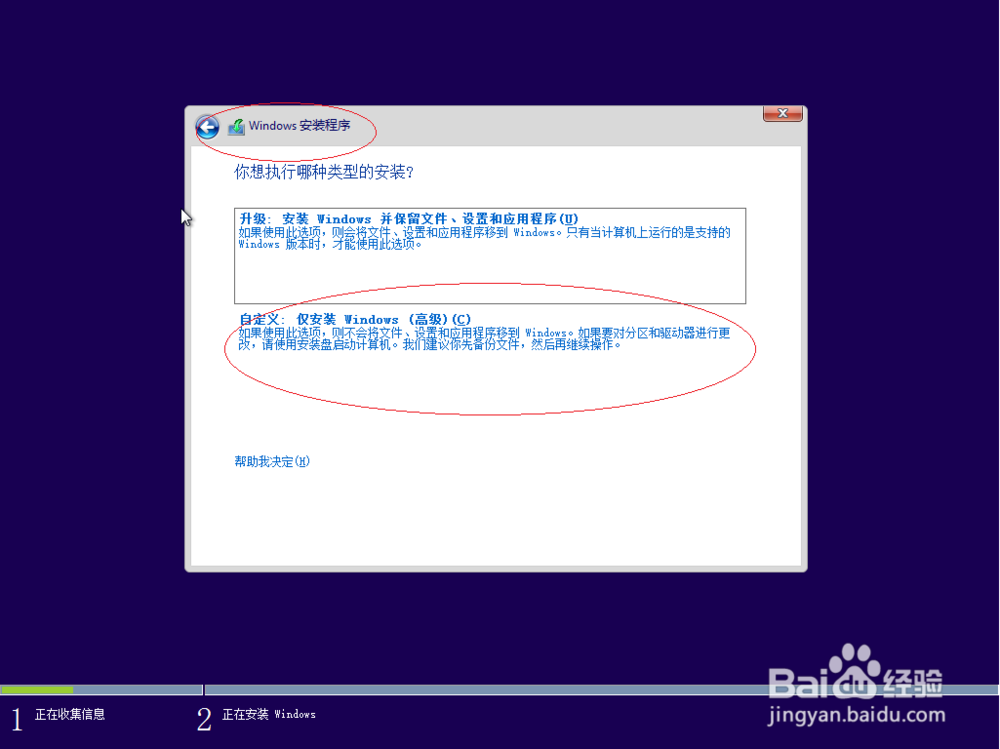
2、如图所示,唤出"您想进行何种类型的安装"界面。点击"自定义(高级)"图标,安装Windows的新副本。
如何安装Windows 8.1 x64位操作系统

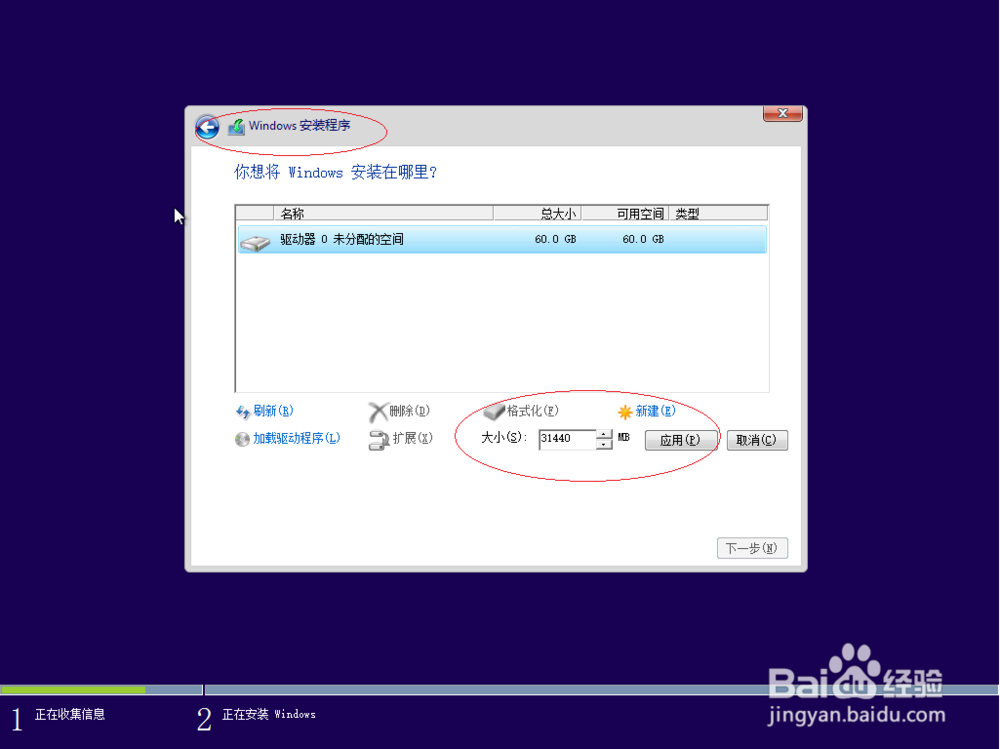
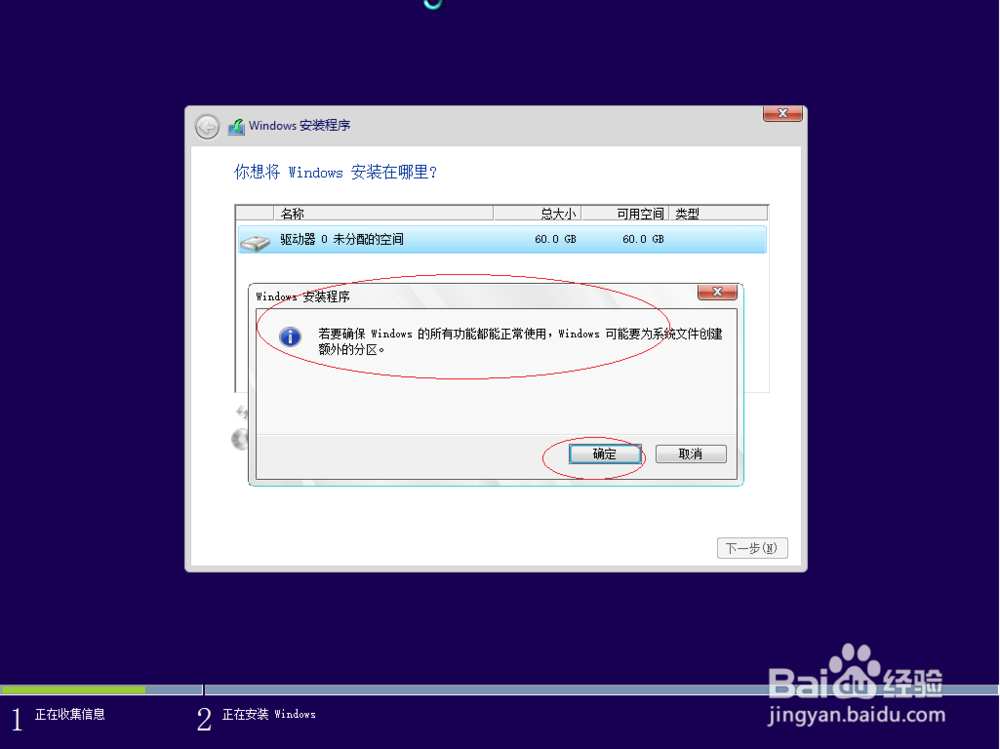
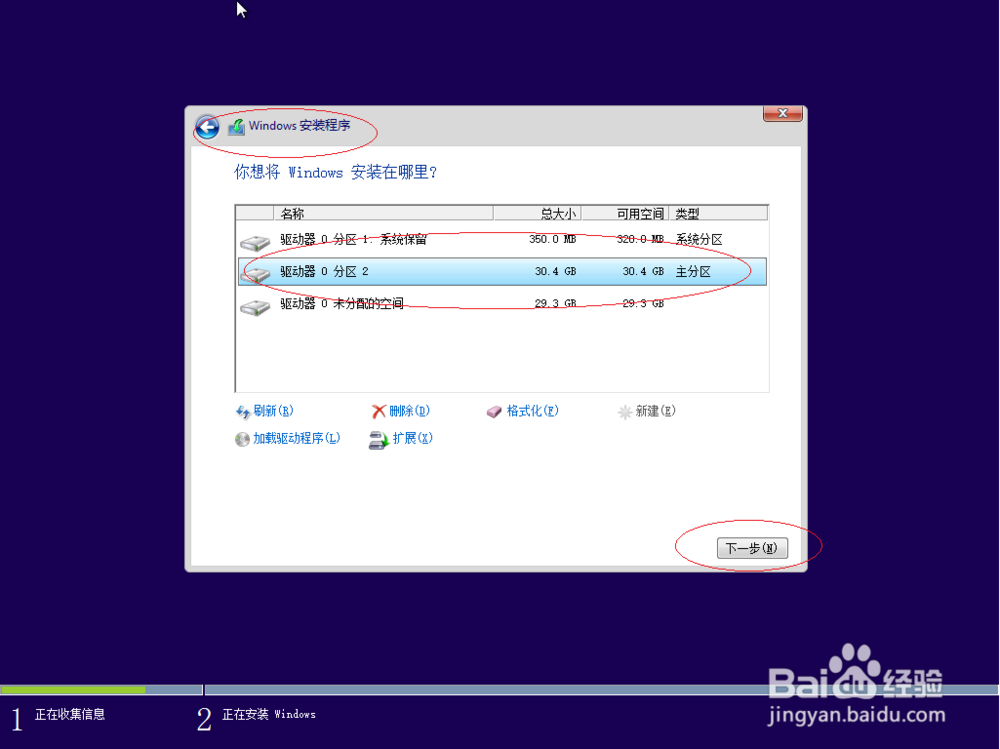
3、唤出"您想将Windows安装在何处"界面,如图所示。点击"驱动器选项→新建"图标创建分区,设置完成点击"下一步"按钮。

如何安装Windows 8.1 x64位操作系统

如何安装Windows 8.1 x64位操作系统

如何安装Windows 8.1 x64位操作系统

如何安装Windows 8.1 x64位操作系统

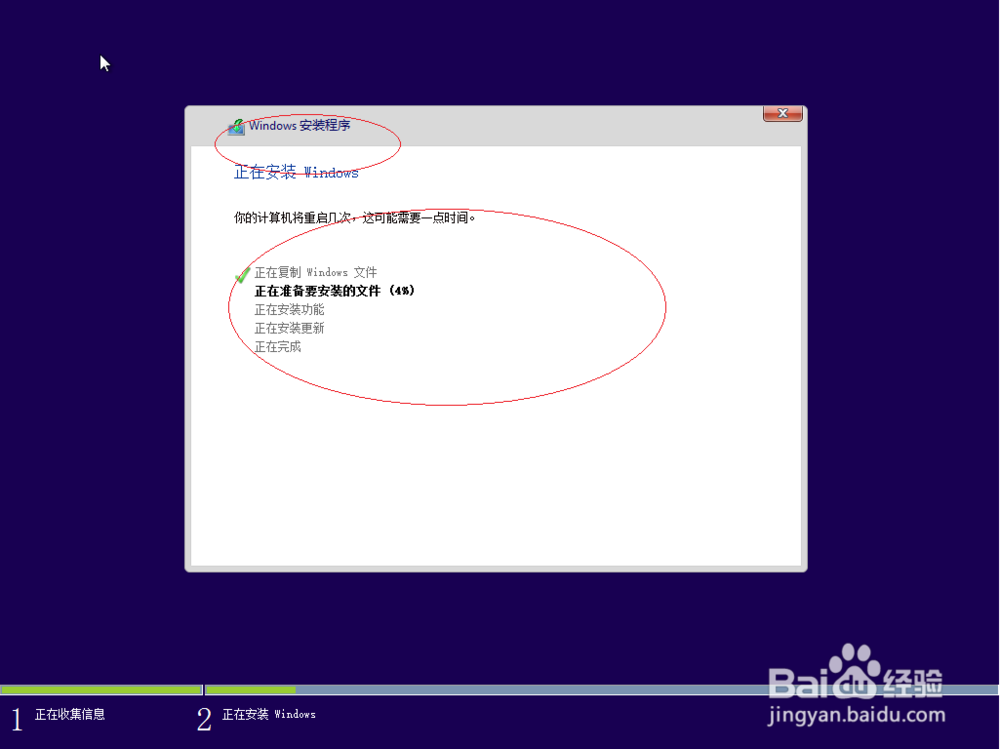
4、如图所示,唤出"正在安装Windows..."界面。目前安装需要这些信息,安装过程中计算机可能重启数次。
如何安装Windows 8.1 x64位操作系统

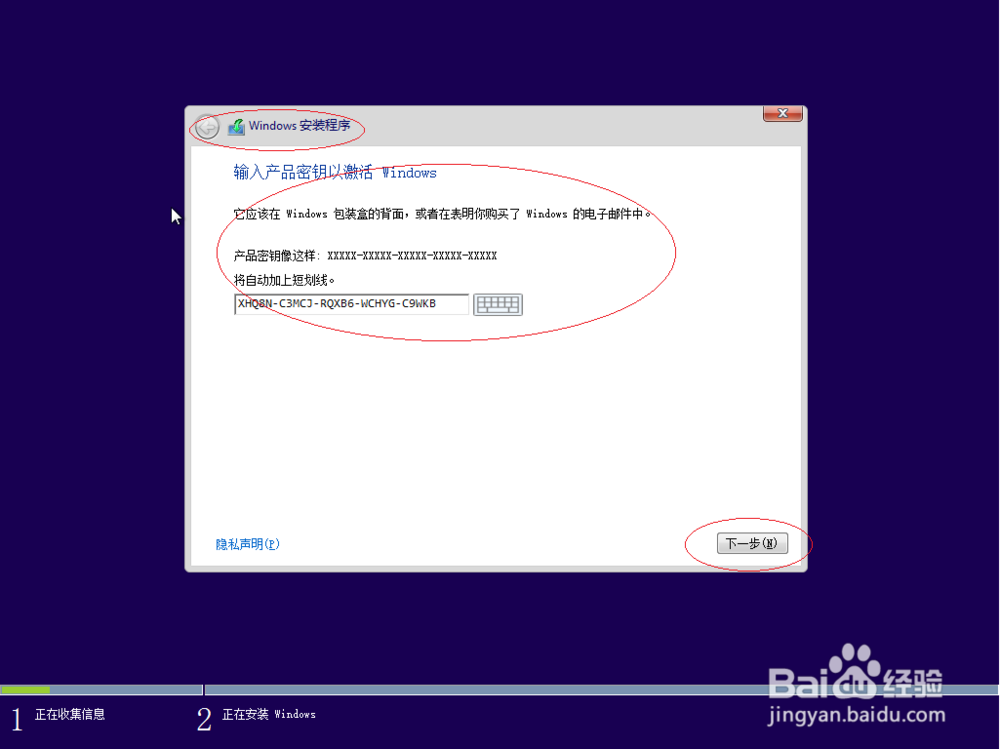
5、唤出"设置 Windows"界面,如图所示。输入用户名、密码、计算机名称和产品密钥,设置完成点击"下一步"按钮。

如何安装Windows 8.1 x64位操作系统

如何安装Windows 8.1 x64位操作系统

如何安装Windows 8.1 x64位操作系统

如何安装Windows 8.1 x64位操作系统

6、如图所示,完成安装Windows 8.1 x64位操作系统的操作。本例到此结束,希望对大家能有所帮助。

如何安装Windows 8.1 x64位操作系统

如何安装Windows 8.1 x64位操作系统

如何安装Windows 8.1 x64位操作系统

如何安装Windows 8.1 x64位操作系统

© 2026 一点资料
信息来自网络 所有数据仅供参考
有疑问请联系站长 site.kefu@gmail.com